
How does a SketchUp Studio license fit?
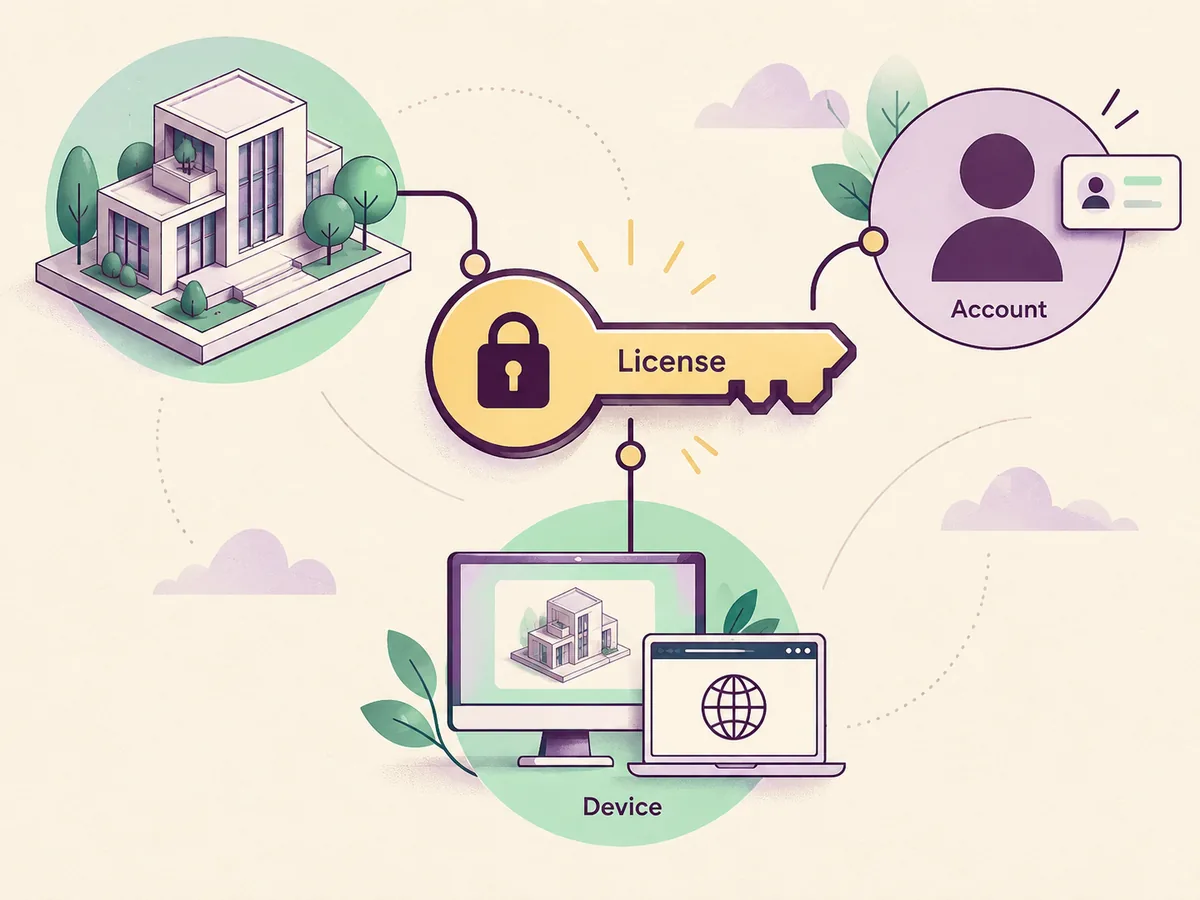
A SketchUp Studio license or another SketchUp entitlement gives you permission to use a specific product under the plan or education terms attached to your account. Downloading an installer does not create an entitlement. The account, subscription status, device rules and product scope determine what opens and which features are available.
For modern subscriptions, the usual path is to choose a plan, sign in to the associated Trimble account and download the supported desktop or browser product from an official page. SketchUp Studio access can include a broader desktop workflow, while SketchUp Free, education access, SketchUp Go and other professional plans serve different users, so the cheapest-looking download is not automatically the correct license.
What a SketchUp Studio license controls
The word license can describe several layers at once: the product you may use, the length of the entitlement, the number of users or devices allowed, and whether the work is personal, educational or commercial. Read those layers together. A web product may be free for a defined use while a desktop feature, LayOut workflow or extension requires a different paid plan.
Your account is the practical source of truth for a current subscription. It should show the product, renewal or expiration status and any organization or education assignment. If a reseller, school administrator or employer supplied access, the person who manages that assignment may need to change the entitlement rather than asking you to find a different installer.
- Match the product name to the work you actually need to deliver.
- Check term, device and user limits before installing on a second computer.
- Treat account status as more important than a file name or download mirror.
- Keep license emails, invoices and organization assignments available for support.
Choose the plan that matches your workflow
Start with the job, not the keyword “free.” If you only need personal browser modeling, SketchUp Free may be enough. If you want a paid browser plan, a desktop workflow, LayOut, professional import and export or collaboration features, compare the current Go, Pro or Studio descriptions on the official plans page. Product names and included services can change, so use the live plan table for final decisions.
Students and schools have a separate boundary. K–12 access may be provided through SketchUp for Schools and a managed school account, while college or university access can use an education subscription. These routes are not interchangeable with a commercial license. Ask the institution which account, product and permitted use applies before installing on a personal computer.
- Browser-only modeling: compare SketchUp Free or a current web plan.
- Desktop production: confirm Pro or Studio features, LayOut and extensions.
- Education: verify school level, enrollment and the assigned account.
- Teams: confirm seat ownership, administrator access and offboarding steps.
Activate a modern SketchUp license
After purchase or assignment, open the official account or product page and sign in with the exact email that owns the entitlement. A common mistake is purchasing with one address and launching the desktop app with another. When the account is correct, the product list, plan status or organization invitation should make the access path clear.
Install the supported product from the official download page, launch it and choose the sign-in option rather than entering an unverified key from a third-party page. If the application displays trial mode, check the account in a browser first. Confirm that the plan is active, the organization invitation was accepted and the computer has internet access for the first activation.
- Use the same account for purchase, invitation acceptance and desktop sign-in.
- Download from SketchUp Help or the official account, not a file mirror.
- Check plan status in a browser before troubleshooting the installer.
- Save the exact error and product name before contacting support.
Move a SketchUp license to another computer
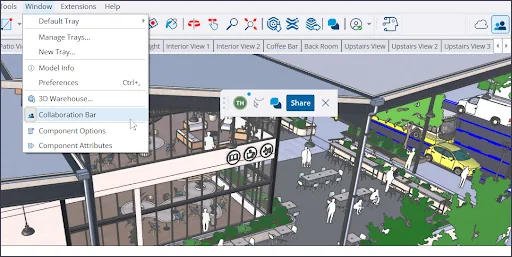
A device change normally has two parts: release the old session when the plan requires it, then sign in on the new computer with the same account. The precise limit depends on the current product terms, so do not assume that copying the application folder or entering the same email is enough. Use the account device controls or the official sign-out process when available.
If the old computer still works, open SketchUp, sign out or deactivate the device and remove any organization profile that should not remain there. On a shared or sold computer, also remove local project copies and browser sessions. This protects your files and prevents a later user from consuming the available activation or seeing private models.
- Use the official device or sign-out controls before wiping the old computer.
- Do not copy activation files or rely on a serial-key website.
- Remove private models and browser sessions from a shared device.
- Ask support for a reset when the old device is unavailable.
Classic licenses, serial numbers and unsafe shortcuts
Some long-time users still have a classic or perpetual SketchUp license, while newer users receive an account-based subscription. Those histories are not interchangeable. A serial number may identify an older entitlement, but it does not prove that a random installer, upgrade path or current desktop release accepts it. Check the original purchase record and the official support documentation for that product generation.
Avoid pages promising a free SketchUp serial key, cracked activation, torrent or “full version” installer. Such downloads can be modified, outdated or bundled with unwanted software. They also cannot create a legitimate account entitlement, restore support or make commercial use lawful. A video or search result that repeats a key is not evidence that the key belongs to you.
- Separate legacy activation rules from current subscription rules.
- Never use cracks, key generators, torrents or anonymous mirrors.
- Verify a serial number against the original purchase and official support.
- Keep security tools enabled while downloading and installing.
Download and verify SketchUp safely
Use the official SketchUp downloading help page as the starting point for an installer. It explains how current products are obtained and keeps the download connected to the account flow. If a page offers a direct EXE or DMG with no product, account or publisher context, treat it as a file-hosting claim rather than a verified SketchUp license route.
- Start from official SketchUp Help or your account dashboard.
- Match the installer to your operating system and plan entitlement.
- Reject security-bypass instructions and unknown file hosts.
- Test a real project and required extensions before production work.
SketchUp license routes compared
Use this as a starting point, then confirm the live official terms for your country, organization and product version.
| Route | Best fit | License check | Important boundary |
|---|---|---|---|
| SketchUp Free | Personal browser modeling | Free account access | Browser features and personal-use limits may differ from desktop production |
| SketchUp Go | Users who need a paid web workflow | Current account plan | Confirm included web features and device terms |
| SketchUp Pro or Studio | Desktop production, LayOut and advanced workflows | Subscription or organization seat | Features, seats and renewal rules follow the current plan |
| Education access | Eligible students, teachers and schools | School or education verification | Education terms are not a substitute for commercial access |
SketchUp license FAQ
Is SketchUp free to use?
A SketchUp Studio license is different from free browser access for eligible personal use, and it is not the same as every professional desktop plan. Check the current Free, Go, Pro or Studio terms and choose by workflow, device and permitted use.
How do I activate a SketchUp license?
Sign in to the official Trimble account that owns the plan, install the supported product from SketchUp Help or the account page, and use the in-app sign-in flow. If the app shows trial mode, verify the account and plan before reinstalling.
Can I transfer my SketchUp license to a new computer?
Usually you should sign out or deactivate the old device and then sign in on the new computer with the same account. Limits vary by product. If the old computer is unavailable, use the account device controls or ask official support for a reset.
What is the difference between a SketchUp Free and Pro license?
SketchUp Free is designed for browser-based personal modeling, while Pro or Studio plans target professional desktop workflows and may include LayOut, advanced import/export or other services. Confirm the current feature list before purchasing.
Where should I download SketchUp?
Use your official SketchUp or Trimble account and the SketchUp Help downloading page. A trustworthy route identifies the product, publisher and account relationship; it does not ask you to bypass activation or replace system files.
Official sources checked
We verify download and support details against first-party SketchUp and Trimble pages. External sources open in a new tab.
- SketchUp plans and pricing — official product plans and current terms
- Downloading SketchUp — official installer and account guidance
- SketchUp account help — official account and access support
- SketchUp education — official education access boundaries