
What is the SketchUp app for Web?
The SketchUp app for Web is the browser workspace for creating and editing SketchUp models online. You open the official application at app.sketchup.com instead of downloading an EXE or DMG, then work in a modern browser with a Trimble account when the service asks you to sign in. The exact tools, storage and account limits depend on the current plan, so check the live product terms before starting a commercial project.
The useful distinction is between a web workspace and a desktop installer. A browser workflow is convenient for learning, quick studies, classroom work, client review and computers where you cannot install software. It is not automatically a full replacement for SketchUp Pro on Windows or macOS. Desktop extensions, LayOut, offline production and large-model requirements can change the right answer.
This page focuses on the decision a download search often hides: do you need a browser modeler, a free personal Web option, the Web-and-iPad Go plan, a viewer, or the desktop Pro application? Start with a small representative file, verify the tools you actually need, and keep a local copy of important project files before relying on any cloud workflow.
How to start a SketchUp for Web model
Open the official Web app in a supported browser and confirm that the address is app.sketchup.com before entering account information. Sign in when prompted, choose the available new-model or open-model action, and begin with a small room, product study or simple building. A first session reveals more than a plan comparison because it tests the browser, graphics acceleration, account access and your file habits together.
Create a few groups, draw a measured shape, orbit around it and add one component. Then save or export through the controls available to your account and reopen the result. Keep the original source file separate from any optimized test copy. If a model contains client data, confirm its sharing and visibility settings before uploading it to a cloud workspace.
- Check the official app.sketchup.com address before signing in.
- Test drawing, grouping, orbiting, measuring and reopening a small model.
- Keep local copies of important SKP files and linked resources.
- Review sharing and visibility settings before uploading client work.
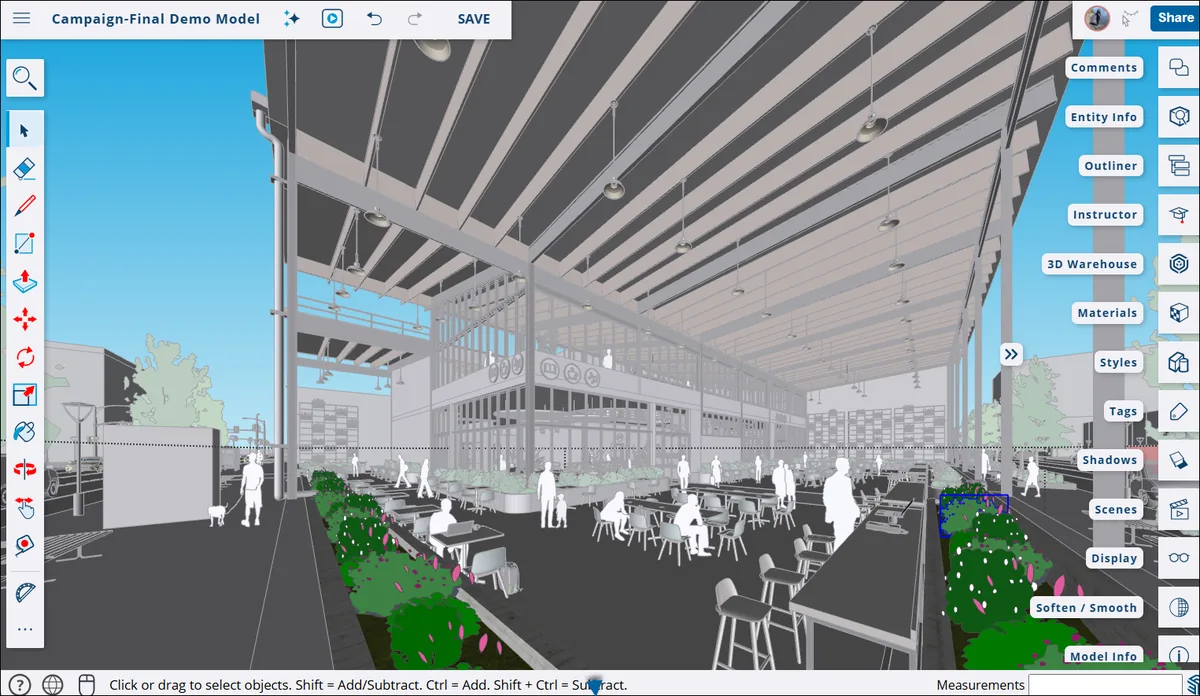
What you can do in the Web workspace
The SketchUp app for Web is useful for the core modeling loop: draw geometry, organize groups and components, measure, orbit, apply materials and inspect a model without maintaining a desktop installation. It can be a practical starting point for students, hobby projects, early design studies and teams that need a quick browser review before committing to a workstation workflow.
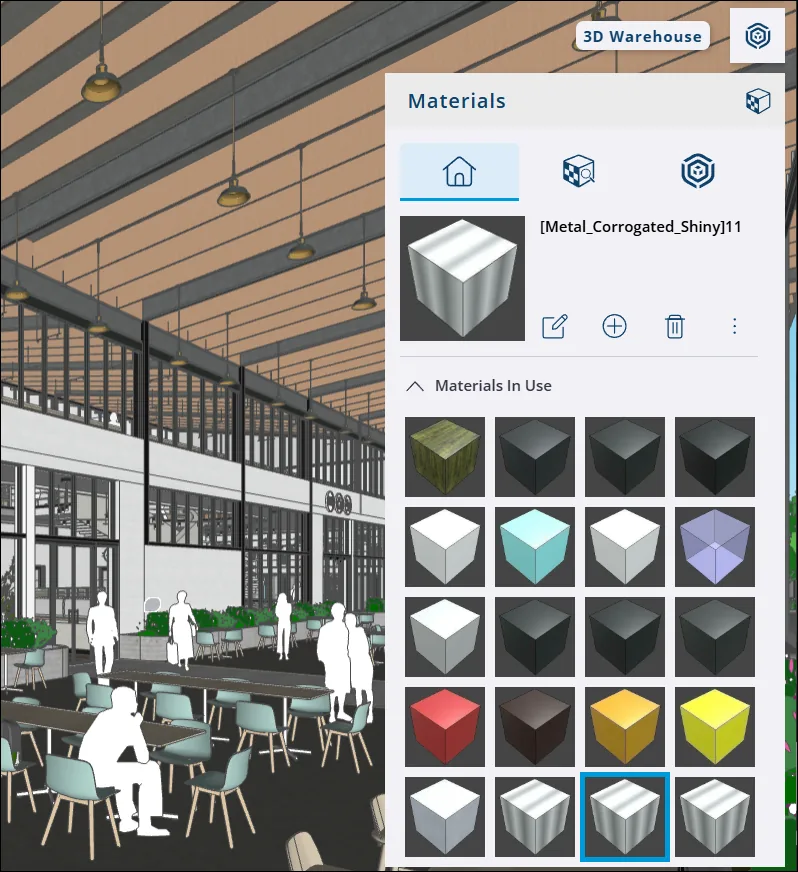
Materials and 3D Warehouse are important parts of that experience. A browser user may search for a component, apply a material or test a visual idea without leaving the Web environment. The official materials workflow also shows why performance matters: a model can look simple while carrying many textures, components or repeated objects. Use only the detail a scene needs and test heavy assets before building a large file around them.
The Web product should be treated as a focused workflow rather than an unlimited promise. Check the current help pages for supported browsers, file actions, sharing behavior and plan limits. If your work depends on a specific import format, extension, rendering engine or documentation tool, test that requirement directly instead of assuming that a browser feature list matches the desktop product.
- Model basic geometry and organize a scene in the browser.
- Use materials and selected 3D Warehouse assets when the account allows it.
- Keep textures, repeated components and model complexity under control.
- Verify current file, sharing and plan limits in official help before production.
SketchUp for Web vs Free, Go, Viewer and Pro
The phrase SketchUp online can point to several related choices. SketchUp Free for Web is the no-cost personal route described on the site's free-options page. SketchUp Go adds a Web-and-iPad plan. SketchUp Viewer is for opening or reviewing models rather than building a full design. SketchUp Pro is the desktop-focused option when you need Windows or macOS software, LayOut or a broader extension workflow.
Choose by the work you must finish, not by the word free or by whether a page offers a download button. If a browser is enough, Web access reduces installation friction. If you need a tablet workflow, compare Go. If you only need to inspect a model, Viewer may be enough. If a plugin, offline process, advanced import/export or documentation file is essential, test Pro on the desktop before committing to a Web-only workflow.
Plans and regional terms can change. Use the official plan page for current pricing, eligibility and account conditions. The table below is a workflow guide, not a promise that every capability is included in every account.
- Free for Web: personal browser modeling when its limits are enough.
- Go: Web and iPad access for a more portable paid workflow.
- Viewer: inspect and share models without a full authoring workflow.
- Pro: desktop modeling, LayOut and broader extension requirements.

When desktop SketchUp is the better choice
A desktop installation is usually the safer choice when a project depends on a specific extension, LayOut document, offline access, large imported geometry, local rendering integration or a managed team deployment. If the SketchUp app cannot meet one of those requirements, download the current installer from the official SketchUp route, review the system requirements and test the extension set before moving production files.
Chromebook and Linux users often investigate SketchUp for Web because a normal desktop installer is not the right path for those systems. A supported browser can be more realistic than Wine, an unknown repack or a copied executable, but the Web workflow still needs a modern browser, graphics support, account access and a backup plan. Do not promise desktop parity where the official product does not provide it.
Use a decision file before you choose. Include one typical model, one component from 3D Warehouse, one material, one measurement, the export or sharing action you need and any plugin-dependent step. If the file passes in the browser and the account terms fit the project, Web is a sensible route. If one critical requirement fails, move to Go or Pro deliberately rather than downloading an unofficial package.
- Prefer desktop Pro for LayOut, extensions, offline work or large production files.
- Use the Web route for supported browser workflows on Chromebook or Linux.
- Test one representative file and every must-have action before migration.
- Never replace a missing feature with a crack, torrent or unknown installer.
SketchUp Web workflow comparison
Use the product boundary, platform and required tools to choose the next step.
| Option | Platform | Authoring | Desktop extensions | Best fit |
|---|---|---|---|---|
| SketchUp for Web | Modern browser | Create and edit models | Not a full desktop equivalent | Browser-first studies and collaboration |
| SketchUp Free for Web | Modern browser | Personal browser modeling | No desktop extension workflow | Learning and personal projects |
| SketchUp Go | Web and iPad | Create, edit and share | Not the full desktop workflow | Portable paid modeling |
| SketchUp Viewer | Web, mobile or desktop viewer | Review rather than full authoring | No | Opening and presenting models |
| SketchUp Pro | Windows or macOS | Full desktop modeling | Broadest supported path | Professional desktop production |
SketchUp for Web FAQ
Is SketchUp for Web free?
The SketchUp app can provide free browser access for eligible personal use, while other Web capabilities belong to paid plans such as Go or account-based products. Check the current official plan terms instead of assuming that every Web feature is permanently free.
Do I need to download SketchUp for Web?
No desktop EXE or DMG is required for the browser workspace. Open the official Web app, sign in when prompted and use a supported browser. Keep a desktop installer separate from the Web workflow.
Can SketchUp for Web run on a Chromebook?
A Chromebook is a more natural candidate for the browser product than for a Windows desktop installer. The SketchUp app can be a practical browser route there, but use a current supported browser, test graphics performance and confirm the file, account and sharing features you need before starting a large project.
Can I use desktop SketchUp plugins in the browser?
Do not assume that a desktop RBZ extension works in the browser. If a plugin is essential, use a compatible desktop SketchUp workflow or confirm the developer's current Web support directly.
Can SketchUp for Web use 3D Warehouse?
The Web workflow can connect with 3D Warehouse features where the current account and product support them. Inspect each model's creator, version, geometry, textures and rights before adding it to production.
Official sources checked
We verify download and support details against first-party SketchUp and Trimble pages. External sources open in a new tab.
- SketchUp for Web — official browser workspace guidance
- Open SketchUp for Web — official browser application route
- Materials in SketchUp for Web — official Web materials guidance
- SketchUp 3D Warehouse — official model-library guidance
- SketchUp system requirements — official hardware and browser context
- SketchUp plans — current plan and regional terms