Find the right SketchUp shortcut quickly
Use this SketchUp keyboard shortcut guide to find a command, check its assigned key, and return to the model. The table prioritizes documented tools such as Select, Line, Move, Push/Pull and Orbit; it is a quick reference, not a guarantee of identical keys on every computer.
Shortcuts can vary by customization, operating system, keyboard layout, edition and extensions. Learn common tool keys here, then use your installation's Shortcuts preferences panel to confirm any assignment that differs or is unavailable.
Common SketchUp keyboard shortcuts
These are keys shown in SketchUp's official default shortcut reference. Mouse gestures are included where documented. Check your current app and platform before relying on any assignment, especially for Mac-only or customized commands.
| Tool or task | Documented shortcut | What it does |
|---|---|---|
| Select | Spacebar | Returns to the selection tool. |
| Lasso Select | Shift + Spacebar | Selects geometry with a freeform boundary. |
| Paint Bucket | B | Opens the material tool. |
| Line | L | Draws edges and closes faces. |
| Rectangle | R | Draws a rectangular face or outline. |
| Circle | C | Creates a circular face or edge loop. |
| 2 Point Arc | A | Draws an arc between two points. |
| Move | M | Moves selected geometry or an object. |
| Push/Pull | P | Extrudes a face into or out of a model. |
| Rotate | Q | Rotates selected geometry around a point. |
| Scale | S | Resizes selected geometry. |
| Offset | F | Creates a parallel inset or outline. |
| Tape Measure | T | Measures distances and creates guides. |
| Orbit | O; click and drag | Changes the camera angle around the model. |
| Pan | H; Shift + click and drag | Slides the view without changing its angle. |
| Zoom | Z; scroll wheel | Moves closer to or farther from the model. |
| Zoom Extents | Shift + Z | Frames the visible model in the viewport. |
| Make Component | G | Creates a reusable component; confirm the assignment on Mac. |
| Search | Shift + S | Opens command search where supported; verify the platform assignment. |
Start with the tools you use most
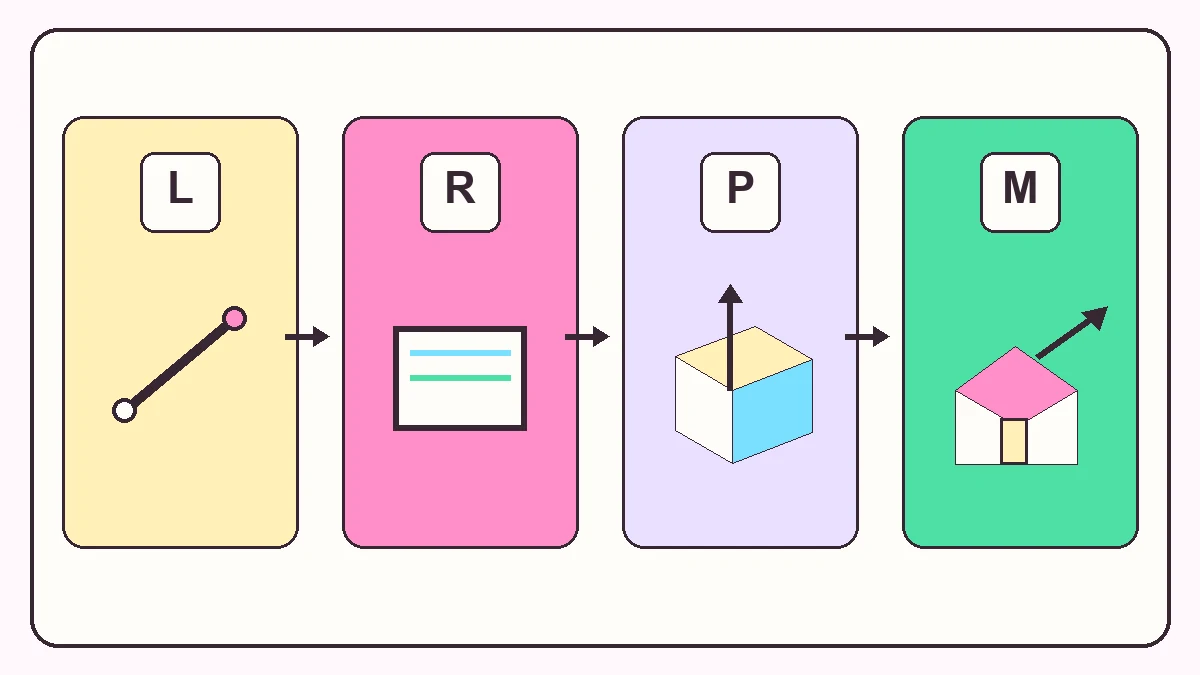
One-letter shortcuts change the active tool without sending the pointer to a toolbar. A simple loop is Spacebar to select, L or R to draw, P to extrude, then M to position. Q rotates; O, H and Z change the view. Learn the commands you use often before memorizing a longer list.
A shortcut activates a command but does not replace its requirements. Push/Pull needs a face, Move needs a selection or point, and Orbit changes the camera. If a key seems inert, verify that the canvas has focus and your edition supports the tool.
- Modeling: L, R, C, A, M, P, Q, S and F.
- Selection and materials: Spacebar, Shift + Spacebar and B.
- Measurement and view: T, O, H and Z.
- Treat the table as a starting point, then verify the assignment in Preferences.
Read default keys as a reference, not a guarantee
Official defaults are a baseline, not your personal setup. A command may lack a key or differ by release, profile or platform. Online charts may mix desktop, web, LayOut and older commands. Search the exact command in your Shortcuts panel before copying a key.
Separate tool keys from in-tool modifiers. M switches tools; Shift may change how the active tool behaves. A modifier can do different things by command, so do not automatically replace Windows Ctrl with Mac Command.
- Check the command name, not only the key shown on a third-party chart.
- Separate tool activation from temporary in-tool modifiers.
- Confirm whether a reference is for desktop or SketchUp for Web.
- Use your installed keyboard layout when choosing a new assignment.
Customize SketchUp shortcuts on Windows and Mac
On Windows, open Window > Preferences > Shortcuts. On macOS, open SketchUp > Settings or Preferences > Shortcuts; menu labels vary by release. Search the Function list, select the command and review its current assignment.
On Windows, enter the combination in Add Shortcut and use the plus control. On Mac, press it in the Shortcuts pane's key field. Resolve conflicts deliberately. Operating-system reservations and some number keys may be unavailable.
- Search for the command's visible name in the Function list.
- Check the Assigned or Key column before changing a shortcut.
- Use a combination that is comfortable on your physical keyboard.
- Test each new assignment in a blank model before using it in production.
Fix a SketchUp keyboard shortcut that does not work
Click the modeling canvas first. A text field, dialog or another app may have focus. For combinations, press keys in order; check Fn on compact keyboards.
Search the Shortcuts panel to confirm the key is assigned. If another command owns it, SketchUp may ask whether to reassign it. System reservations, keyboard layout, extensions and custom profiles can also cause conflicts. Check before removing anything.
Verify the command exists in your edition. Desktop extensions may be absent in SketchUp for Web, and imported preferences can omit plugins. Test in a blank model: if the key works there, the issue may be focus, selection or tool state.
- Click the model canvas to restore focus.
- Check the assigned key and resolve any conflict in Preferences.
- Check Fn, keyboard layout and operating-system reservations.
- Confirm the command exists in this edition and test in a blank model.
Build a shortcut routine that is easy to remember
Build a shortcut set around your work. Floor plans may need selection, Line, Rectangle, Offset, Tape Measure and Zoom; object modeling may need Move, Push/Pull, Rotate, Scale and Orbit. Keep a short list of custom command-key pairs for future installs.
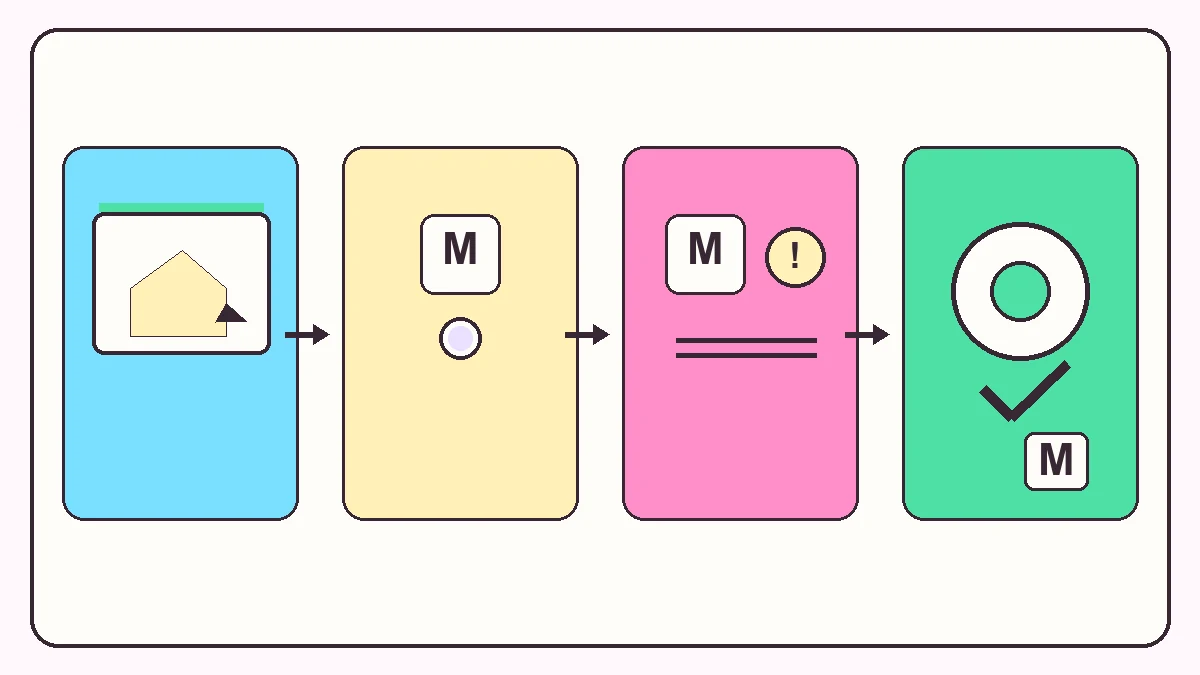
Practice on a blank model: draw a rectangle, select its face, Push/Pull, Move a copy, Orbit, then Zoom Extents. If a key feels awkward, reassign and test it before adding more changes. A small set is easier to recall than a long chart.
- Start with five to eight commands used in every project.
- Keep shortcut notes beside the command names, not just key letters.
- Practice on a blank model so mistakes are easy to undo.
- Review custom keys after a major application or workspace change.
SketchUp keyboard shortcuts FAQ
What are the most useful SketchUp keyboard shortcuts?
Start with Spacebar for Select, L for Line, R for Rectangle, M for Move, P for Push/Pull, O for Orbit, H for Pan and Z for Zoom. Check the shortcut panel for your edition before relying on a key.
Are SketchUp shortcuts the same on Windows and Mac?
Many single-letter tool keys are shared, but not every command or modifier behaves the same. Verify the current assignment in the installed Windows or macOS Shortcuts panel instead of translating every Ctrl key to Command.
How do I change a SketchUp shortcut on Windows?
Open Window > Preferences > Shortcuts, search for the command, select it, enter a new combination in Add Shortcut and use the plus control. Resolve any conflict message deliberately, then test the key in a model.
How do I change a SketchUp shortcut on Mac?
Open SketchUp > Settings or Preferences > Shortcuts, locate the command and press the desired combination in the shortcut field. Menu labels vary by release, so use the Shortcuts pane shown by your installation.
Why does a SketchUp shortcut do nothing?
The model canvas may not have focus, the key may no longer be assigned, another command may own it, or the command may not exist in that edition. Check the Shortcuts panel and test in a blank model.
Does SketchUp for Web use the same shortcut list as desktop?
SketchUp says many default web shortcuts are nearly identical to desktop, but the command sets and customization options are not identical. Use the web help list for the web app and the Shortcuts panel for desktop.
Official sources checked
We verify download and support details against first-party SketchUp and Trimble pages. External sources open in a new tab.
- Default Keyboard Shortcuts — Official list of documented default tool keys
- Customizing Your Keyboard and Mouse — Official Windows and Mac shortcut assignment instructions
- Using Shortcuts in SketchUp for Web — Official notes on web and desktop default shortcut differences