
The safe way to install SketchUp plugins
The safest way to install SketchUp plugins is to identify the publisher, confirm the supported SketchUp version and then install the original package through Extension Manager. For a manually downloaded extension, keep the RBZ file intact; do not extract it or replace a license file unless the developer's documentation explicitly requires a different workflow.
This page separates downloading from installation. Extension Warehouse can lead you to a listing and its developer, while Extension Manager handles the local RBZ installation in the desktop application. Browser products such as SketchUp Free do not provide the same desktop extension environment, so choose the right product before troubleshooting a plugin.
Before you install a SketchUp plugin
Start with the extension listing rather than a search-result mirror. Confirm the developer name, product page, supported SketchUp releases, operating-system requirements, license terms and any required shared library. A free extension can still be outdated or redistributed without permission, so the file being available does not prove that the source is safe.
Make a copy of an important model before installing a new extension. If the plugin is used by a team, record the approved source and version, and test the extension in a non-production copy. SketchUp 2026 is the current major release checked for this site on August 7, 2026, but individual plugins still depend on their developers' compatibility statements.
- Prefer Extension Warehouse or the original developer site.
- Read the supported SketchUp version and dependency notes.
- Keep a backup copy of important models and templates.
- Avoid cracked packages, unknown download managers and password archives.
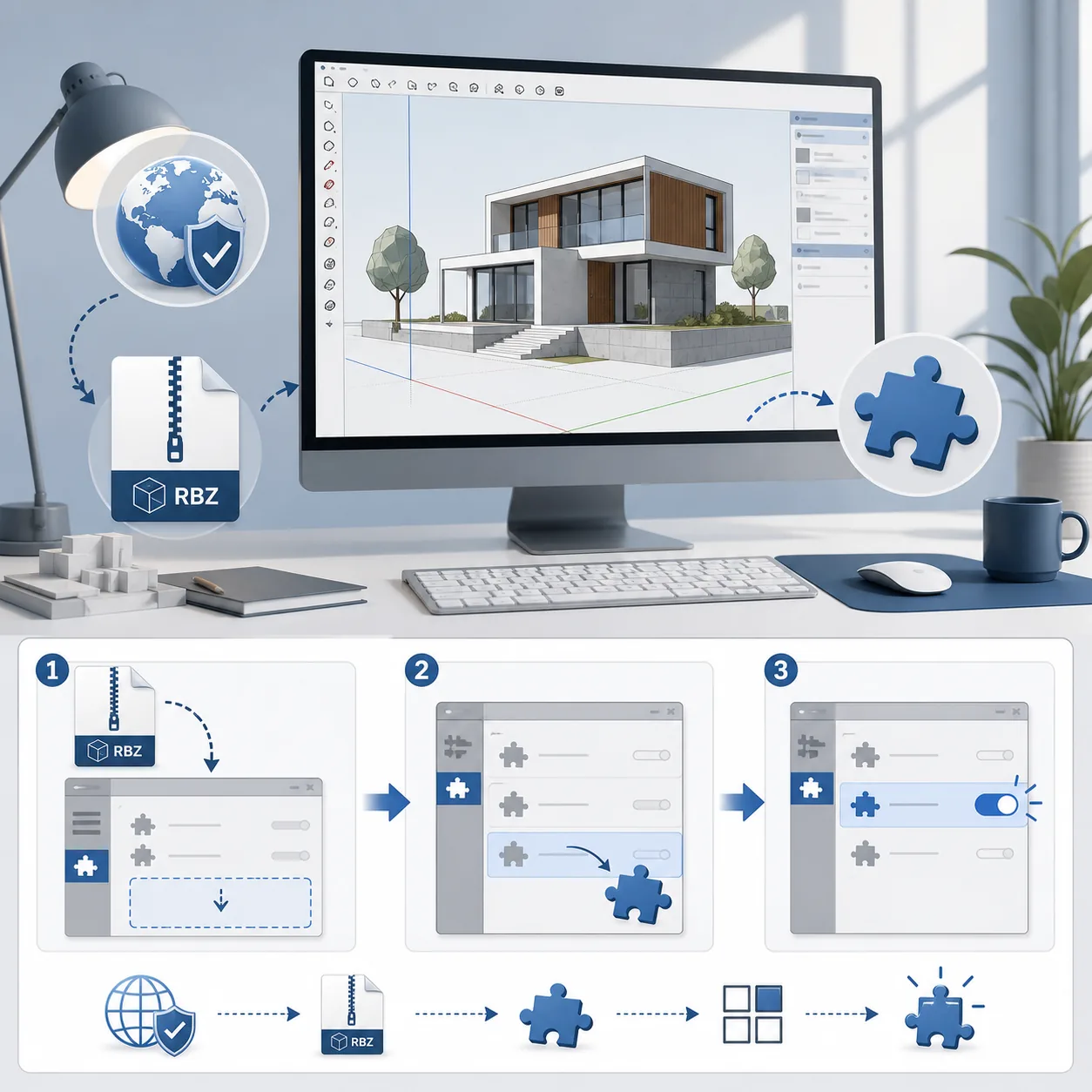
How to install an RBZ file in Extension Manager
For a manually downloaded RBZ, open the desktop version of SketchUp and open Extension Manager from the Extensions menu. Choose Install Extension, select the intact RBZ file and accept the installation only when the publisher and package match what you intended to install. Do not rename a random archive to .rbz and assume it is a valid extension.
After installation, restart SketchUp when the developer requests it. Look for the extension in Extension Manager, the Extensions menu or the toolbar described in the documentation. If the extension requires a shared library, install that dependency from the same trusted ecosystem before opening a production model.
- Launch the desktop SketchUp application, not SketchUp Free in a browser.
- Open Extensions > Extension Manager > Install Extension.
- Select the original RBZ without extracting it first.
- Restart and confirm the extension is enabled before using it in a real project.
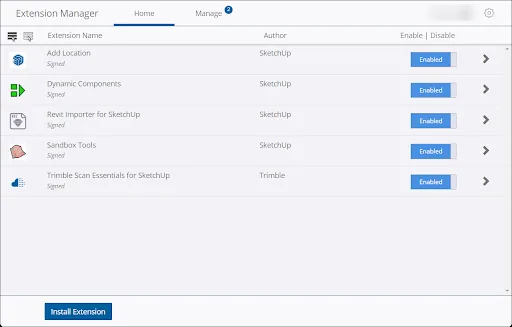
How to download an extension from Extension Warehouse
Open the official Extension Warehouse listing and inspect the extension overview, developer identity, supported SketchUp versions, release notes and license. When the listing offers a Download button, follow the normal browser download flow and keep the resulting package in a known folder. A success message may point you back to Extension Manager because the catalog and the desktop installer are separate steps.
Some extensions use the vendor's own installer, account or trial system instead of an RBZ. In that case, follow the developer's official instructions and do not substitute an archive from a mirror. Commercial tools such as renderers may need a separate license, account activation or system requirement check.
- Check the publisher and release notes before downloading.
- Use the listing's own download action or the developer's official page.
- Read whether the result is an RBZ, installer or account-based product.
- Keep the browser download and install step traceable for future updates.
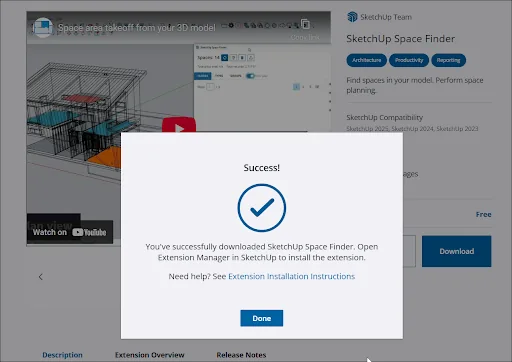
Where SketchUp plugins are located and how to manage them
Most users do not need to browse a plugins folder manually. Use Extension Manager to see whether an extension is installed, enabled or disabled, and use the developer's instructions when a plugin has a separate library or configuration folder. Manually copying an old Plugins folder between major releases can bring incompatible libraries and duplicate loaders into the new installation.
If an extension is missing from the menu, check Extension Manager first, then review the developer's toolbar or menu instructions. Disable one optional extension at a time when troubleshooting. Keep exact error messages and the SketchUp version private when they contain account details or local paths, and share only the information requested by official support.
- Use Extension Manager as the primary inventory.
- Disable optional extensions one at a time during diagnosis.
- Install dependencies before the extension that needs them.
- Do not copy a complete legacy plugin folder without checking compatibility.
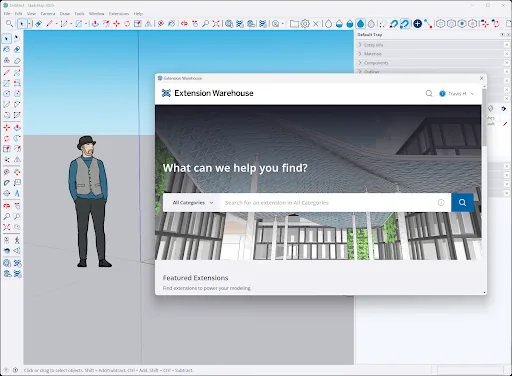
Compatibility, dependencies and common installation errors
A plugin can install successfully and still fail when its Ruby API, shared library, renderer, operating system or graphics driver is not supported. Check the developer's current documentation before copying an extension from SketchUp 2024 or 2025 into SketchUp 2026. For a critical production workflow, keep the previous supported release available until the required extensions have passed a model-copy test.
When a plugin does not appear, confirm the active SketchUp major version and Extension Manager status. When it crashes, disable optional extensions and reproduce the issue in a blank model. When licensing fails, use the vendor account or official support path; an activation patch is not a safe troubleshooting step. Review the SketchUp system requirements if a rendering extension is involved, and use the SketchUp 2026 download guide for the current desktop installation context.
- Record SketchUp, plugin and dependency versions together.
- Test in a copied model before production use.
- Use developer documentation for Ruby, renderer and license errors.
- Do not solve a compatibility problem with a cracked package.
SketchUp plugin installation checklist
Before you finish, confirm that the source, package and enabled state all match. The following checklist is useful for personal projects and for teams that need repeatable desktop setups. If a plugin is not essential, remove it rather than keeping an unknown or unsupported copy installed just in case.
For a broader overview of safe extension sources, compare this page with the site's SketchUp plugins download guide. That page covers source selection, licenses, popular extension families and the reasons to avoid cracked or repacked plugins.
- The publisher is identifiable and the source is official or clearly documented.
- The current SketchUp major version and operating system are supported.
- The RBZ or vendor installer is the expected package, without extra patches.
- Dependencies, license terms and restart requirements are recorded.
- The extension works in a copied model before it is used in production.
Which SketchUp plugin installation path should you use?
Choose the path that matches the source and package type; do not force every extension into an RBZ workflow.
| Situation | Preferred path | What to verify | Avoid |
|---|---|---|---|
| Extension Warehouse listing | Download from the listing, then use Extension Manager | Publisher, release notes, supported version | Mirror or repacked archive |
| Developer distributes an RBZ | Use the original RBZ with Install Extension | Dependency, signature warning, license | Extracting or renaming unknown files |
| Commercial renderer or tool | Use the vendor installer and account flow | GPU, OS, trial and license terms | Activation patch or cracked copy |
| Team deployment | Test a recorded package in a copied model | Version, dependencies and rollback plan | Copying an entire legacy Plugins folder |
How to install SketchUp plugins FAQ
How do I install SketchUp plugins?
Download the original extension, open the desktop SketchUp application, choose Extensions > Extension Manager > Install Extension and select the intact RBZ. Follow the developer's dependency and restart instructions.
Can I install an RBZ file in SketchUp Free?
No. SketchUp Free is a browser product and does not provide the same desktop Extension Manager environment. Use a supported desktop plan when an RBZ plugin is required.
Where are SketchUp plugins located?
Use Extension Manager to inspect installed and enabled extensions instead of copying folders manually. A developer may document a separate library or configuration location for a particular tool.
Why does my SketchUp plugin not appear after installation?
Check the active SketchUp major version, Extension Manager status, required dependencies and the developer's toolbar or menu instructions. Restart SketchUp when requested and test with optional extensions disabled.
Can I install an old SketchUp plugin in 2026?
Only when the developer documents compatibility. Ruby API, scene behavior, operating-system and renderer changes can make an older extension unreliable even when installation completes.
Is it safe to download cracked SketchUp plugins?
No. Modified commercial extensions can contain malware, break updates, expose account data and violate the publisher's license. Use the official catalog, developer site or support channel instead.
Official sources checked
We verify download and support details against first-party SketchUp and Trimble pages. External sources open in a new tab.
- SketchUp Extension Warehouse — official extension catalog
- Installing Extensions — official RBZ and Extension Manager guidance
- Adding Extensions to SketchUp — official download and installation workflow
- Managing Extensions — official enable, disable and management guidance